

1. Connect Slack
Open your project in the Phylax platform. Go to Settings → Slack under Integrations. Select Connect to Slack and create the preconfigured app in your Slack workspace.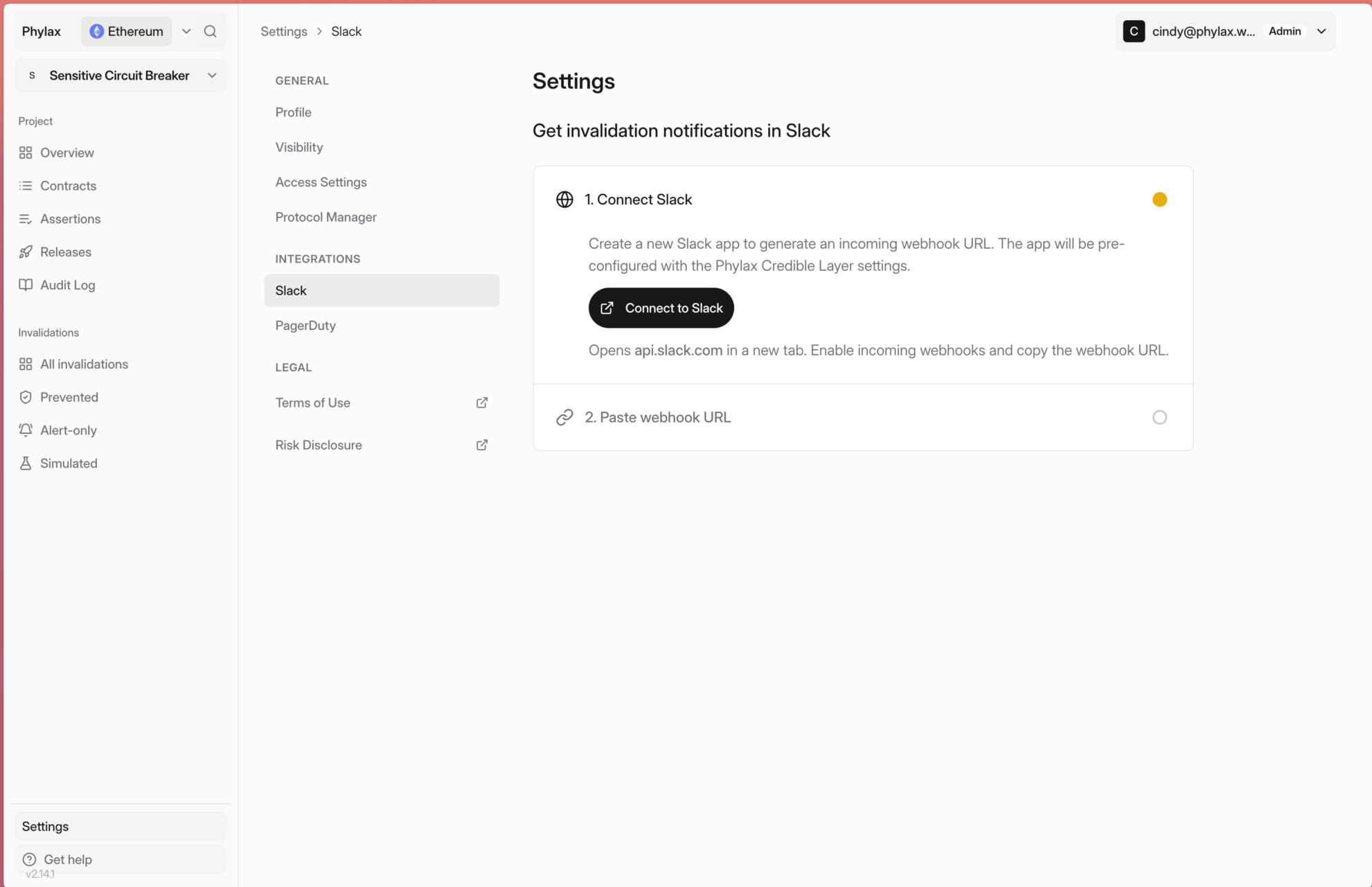
Connect to Slack from your project's integration settings
2. Copy the Channel Webhook
In the Slack app settings, enable Incoming Webhooks and add a webhook for the channel that should receive alerts. Select Copy beside its URL.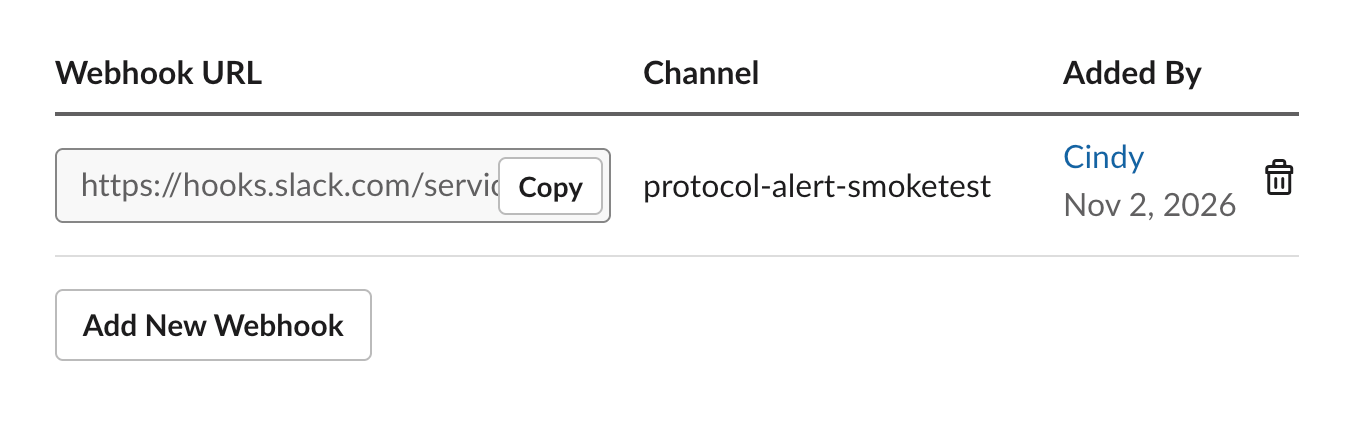
Copy the webhook for the channel that should receive alerts
3. Save and Enable Alerts
Return to Phylax, paste the webhook URL, and select Save. Make sure Invalidation alerts is enabled.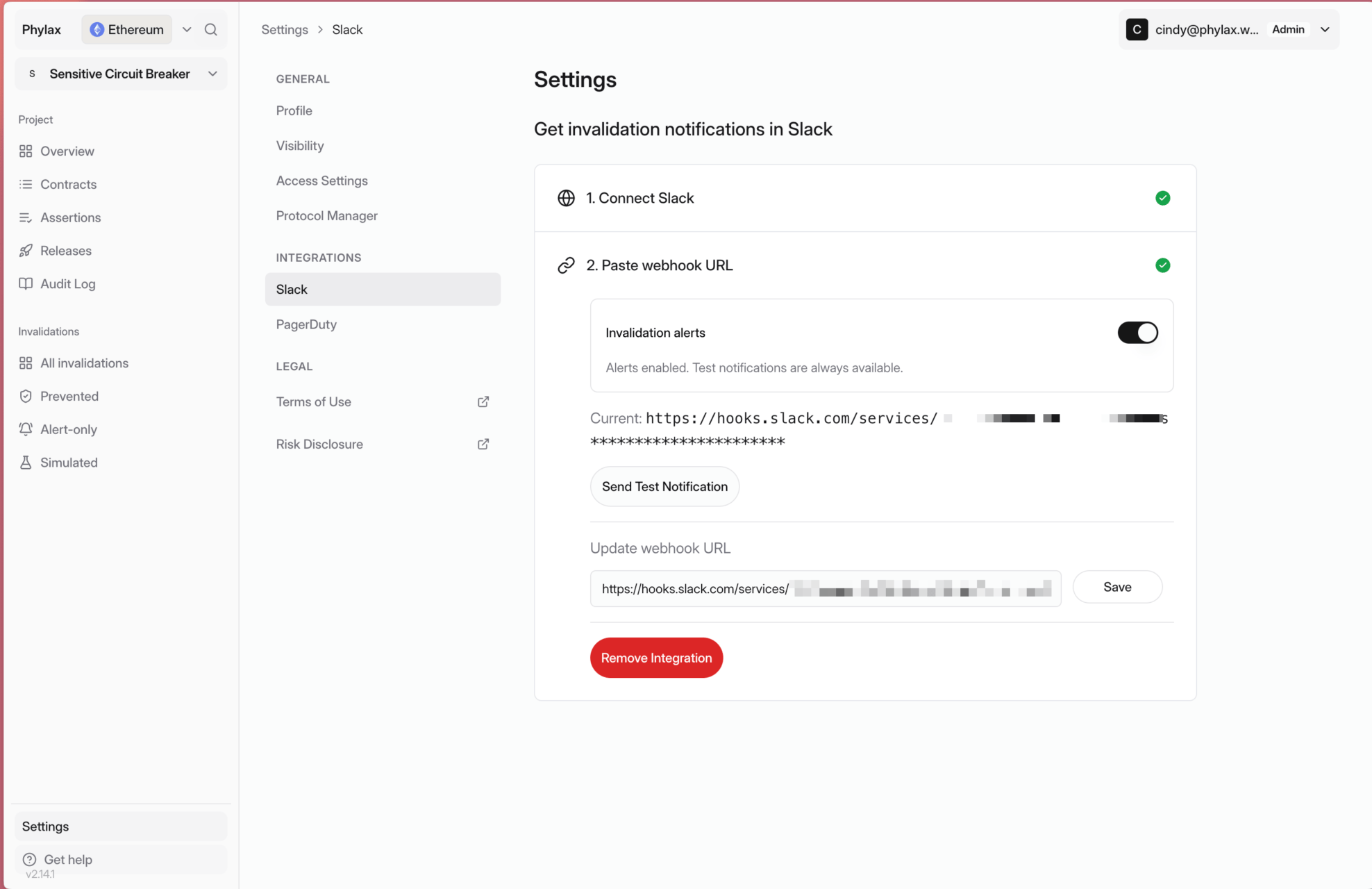
A saved webhook with invalidation alerts enabled
4. Test the Connection
Select Send Test Notification. Confirm that Slack alerts connected appears in your chosen channel. If it does not, check the saved webhook and the app’s access to that channel.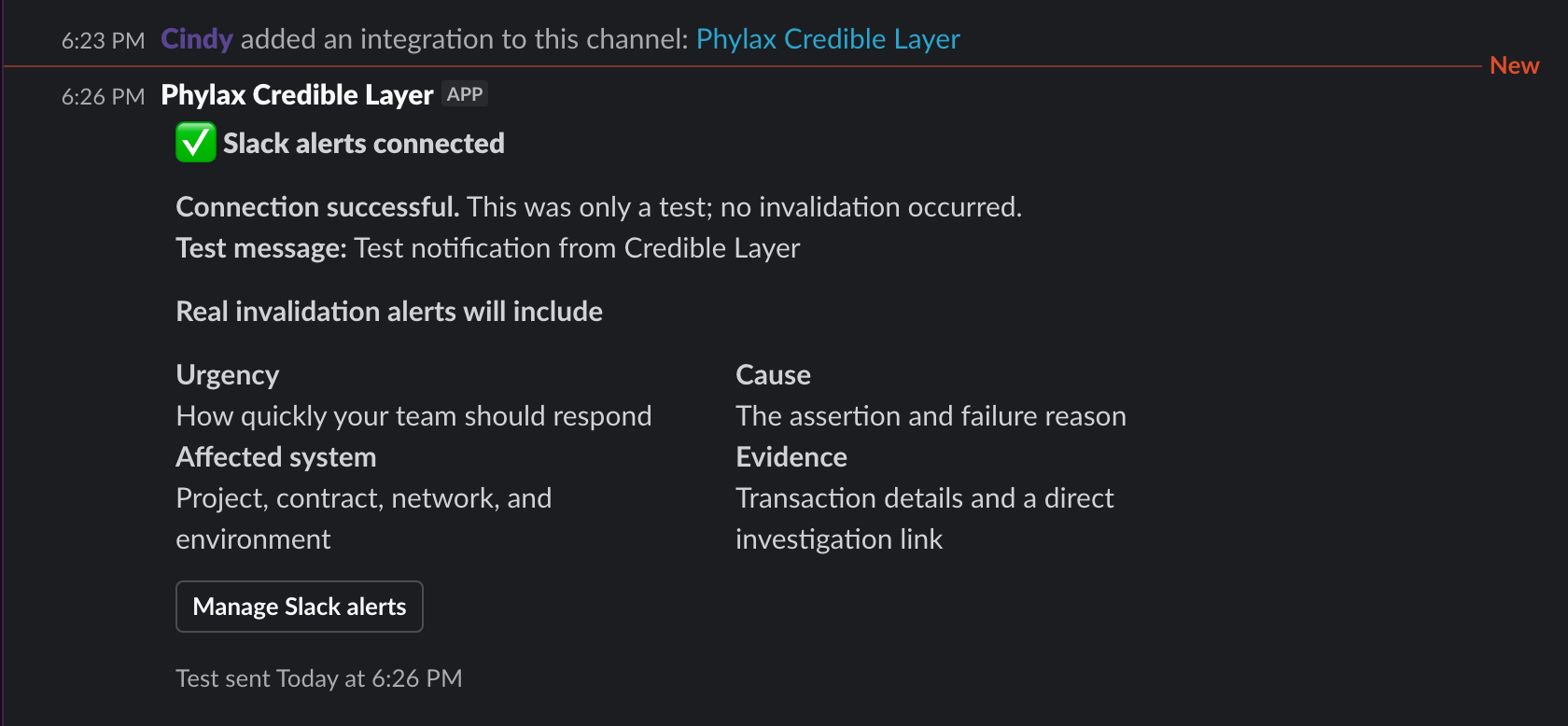
The test message confirms the connection; no invalidation occurred